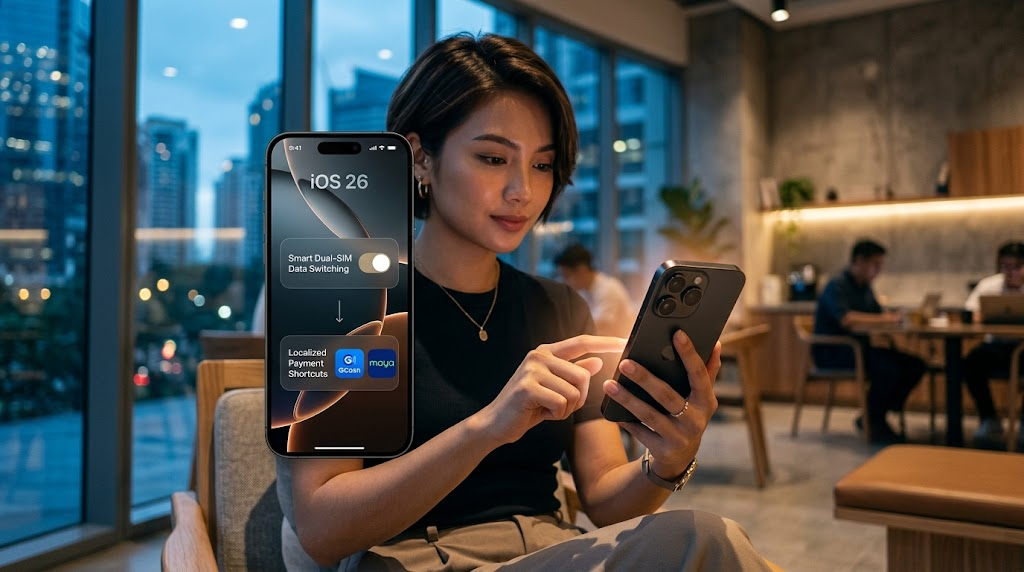
So, you just updated your iPhone to the latest iOS 26, and everything looks pretty much the same on the surface. Dynamic Island is still chilling up there, your home screen layout hasn’t changed, and you’re probably wondering if the update was even worth the data allocation. But here’s the catch: the best changes in this update aren’t the ones Apple flexed on stage. They are buried deep inside your settings menu.
In real-world use, these hidden features actually matter more than the flashy cosmetic updates. Whether you are trying to stretch your battery life while commuting along EDSA, sick and tired of dropping connections on your dual-SIM setup, or just want a faster, more secure way to handle local digital payments, iOS 26 has some absolute gems tailored for the Filipino digital lifestyle. Let’s dive into the secret settings you need to toggle right now.
🚀 Quick Summary: What You’re Missing
- Smart Dual-SIM Data Switching: No more manual shifting when your primary network loses signal.
- Apple Pay PH Optimization: Prepare your device for seamless local terminal tapping.
- Aggressive Background Throttle: Saves precious battery life in high-temperature environments.
1. Intelligent Network Failover for Dual-SIM Setups
Most of us in the Philippines run a dual-SIM setup—usually a combination of a physical SIM and an eSIM to balance Globe, Smart, or DITO networks. We all know the struggle: you are riding the MRT or walking inside a mall, and suddenly your primary data network drops to one bar of unusable 3G. In older versions, your iPhone would stubbornly cling to that dead connection until you manually went into Settings to switch data lines.
iOS 26 finally introduces Intelligent Network Failover. This isn’t just the old “Cellular Data Switching” that barely worked; this is a deeply optimized system that measures actual ping and packet loss. If your primary network goes unresponsively slow for more than 7 seconds, it instantly routes your data through your secondary SIM without dropping your ongoing online game or video call. Honestly, this is where things get interesting for remote workers and commuters alike.
💡 Pro Tip: How to turn it on
Go to Settings > Cellular > Cellular Data. Scroll past your data plan options and toggle on Predictive Network Failover. Make sure your secondary SIM has an active data promo so you don’t eat up regular load credit!
2. Localized Payment Cache for Near-Field Tapping
With the digital payment landscape shifting rapidly and fintech integrations hitting local banks, your iPhone is getting way smarter with how it handles wireless terminals. iOS 26 quietly added a background optimization layer specifically for regions expanding their contactless infrastructure. It pre-caches local merchant handshakes so that the moment you double-click your power button near a supported point-of-sale terminal, the transaction clears almost instantly.
Surprisingly, leaving this setting disabled by default means your phone does a full cryptographic verification over cellular data every single time you tap. If you are in a basement supermarket with terrible reception, that transaction is going to fail. Turning this on ensures the cryptographic token is ready to go offline.
3. Ambient Thermal Charging Limit
We live in a tropical country, and let’s be real—our iPhones get hot. Whether you are using Waze on your dashboard under the scorching midday sun or charging your phone in a non-airconditioned room, heat is the number one killer of iPhone battery health. You’ve probably seen that annoying “Charging on Hold” notification more times than you’d like to admit.
Instead of just stopping the charge abruptly, iOS 26 introduces a hidden Ambient Thermal Control mode. When your iPhone detects high ambient humidity and temperatures typical of Philippine weather, it doesn’t just halt at 80%. It dynamically shifts the charging wattage down from 20W to a gentle 5W, allowing your phone to keep juicing up safely without generating excessive internal heat. And yes, that actually matters if you want your phone’s battery health to stay above 90% after a year of heavy use.
“Using your phone as a navigation screen on a midday drive without this feature can degrade your battery capacity up to three times faster over a six-month period.”
4. Aggressive Background App Throttling
For most users, the default background app refresh is more than enough. But if you have Facebook, Messenger, Viber, Instagram, and three different online shopping apps installed, your battery is constantly taking a hit in the background. Local e-commerce apps are notoriously heavy, constantly pinging servers for flash sale updates and shipping tracking notifications.
iOS 26 introduces a hidden toggle inside the developer-turned-user menu called Aggressive Throttling. Instead of allowing apps to wake up randomly every few minutes, iOS groups background tasks together and forces them to execute all at once when you unlock your phone. This means your phone sleeps peacefully when it’s in your pocket, saving you massive amounts of standby battery.
To turn this on, head over to Settings > General > Background App Refresh. You will see a new option called Batch Execution. Switch it on, and you’ll instantly notice your phone runs significantly cooler during the day.
Pros and Cons of Enabling These Features
🟢 The Upside
- Massively improved battery life in hot, tropical climates.
- Zero dropped calls or data timeouts when moving through dead spots.
- Faster checkout speeds at wireless terminals and digital payment counters.
🔴 The Downside
- Slightly delayed non-urgent notifications (like social media likes).
- Requires managing two active SIM loads to maximize smart switching.
Frequently Asked Questions
Q: Will these features work on older iPhones running iOS 26?
Yes, any iPhone that supports iOS 26 can access these toggles. However, older models like the iPhone 13 or 14 series might experience slightly less dramatic battery savings compared to newer models with more efficient modems.
Q: Does the Smart Dual-SIM switching consume extra prepaid load?
It only uses data from the SIM card it switches to. If your secondary SIM is configured on a “Pay-per-Use” basis instead of an active data promo, you might incur standard browsing charges. Always make sure both cards have a registered data package.
So, Is It Real-World Tested?
If you’re still sitting on the fence about digging into your settings app, think about how much time you waste dealing with dropped cellular signals or staring at a frozen checkout screen. iOS 26 has plenty of optimization layers hidden underneath the surface, but Apple doesn’t always auto-enable them because they want to play it safe across global markets. For our specific environment, modifying these choices makes total sense.
Take five minutes out of your day to flip these switches, monitor your battery performance over the next 48 hours, and enjoy a much smoother, vastly more responsive iPhone experience customized for local conditions.
Disclaimer: Images used in this article are for illustrative purposes only. All photos belong to their respective owners. If you are the copyright holder of any image and wish to request removal or credit update, please contact us.